An AI tool can produce convincing screens before you have decided what the user is trying to do. That speed is useful only if the prototype answers a real design question. Otherwise, you have a polished route that may lead to the wrong place.
AI-assisted UX prototyping works best when you define a user task, use AI to explore a few possible flows or screen states, choose and edit one with a clear reason, then test it with people. AI can shorten the path from idea to something clickable. It cannot supply the user evidence or judgment that makes the prototype worth testing.
This guide is for UI/UX students, career switchers and designers who already understand basic wireframes and want to use AI without letting generated screens set the design direction. A simple online shop checkout will serve as the example throughout.
The human-led rapid prototyping loop
- Define one user, one task and a success condition.
- Ask AI for a small set of alternatives or missing states.
- Compare each option with research, constraints and accessibility needs.
- Build the smallest flow that can answer your design question.
- Observe a user, revise the flow and record what changed.
01 Begin with the decision the prototype must inform
Imagine shoppers abandon a checkout after reaching the delivery step. Your question might be: “Can a first-time buyer see the delivery cost and choose an option before committing to payment?” That is a testable problem. “Make a better checkout” gives AI and the designer too much room to guess.
Write down what you know, what you assume and what you need to learn. You may know from support conversations that delivery cost is a concern. You may only assume that the cost appears too late. The prototype can explore earlier disclosure, but only research and testing can help you decide whether that change addresses the issue.
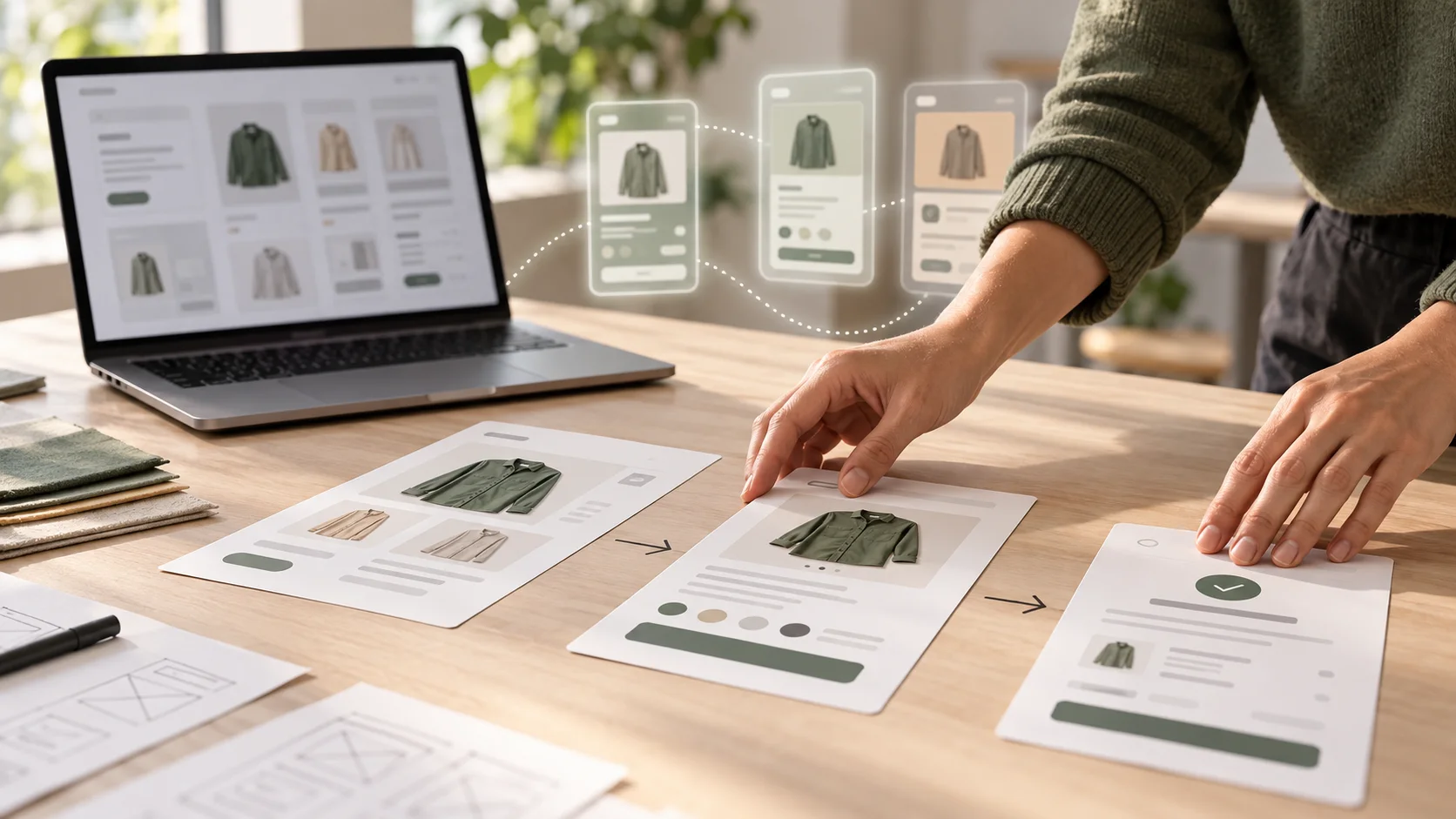
Map a short user flow: cart → delivery choice → order review. Include the point where a buyer can change the delivery choice. Keep payment as a simulated next step unless payment interaction itself is the question.
02 Use AI to widen the options, then narrow them
AI can quickly suggest different ways to show delivery options: a choice in the cart, a dedicated step or a compact panel on the review screen. It can also remind you to consider an unavailable postcode, a delayed delivery estimate or a changed basket. Treat these as possibilities to inspect, not findings about your users.
A useful prompt supplies the problem and boundaries. For example:
Example prompt for early exploration
“Sketch three low-fidelity mobile checkout flows for a first-time buyer who wants to know delivery cost before payment. Start at the cart and end at order review. Show where the buyer selects or changes delivery. Include one unavailable-postcode state. Label the assumption behind each flow. Keep payment simulated and avoid adding features outside this task.”
Compare the outputs against the actual task. Can the buyer see the cost soon enough? Does the route make it easy to correct a mistake? Does any option add a step without a clear benefit? If a generated idea conflicts with user research or business rules, change it or discard it. A good research-to-decision process makes that choice explainable.
03 Turn the chosen route into a testable prototype
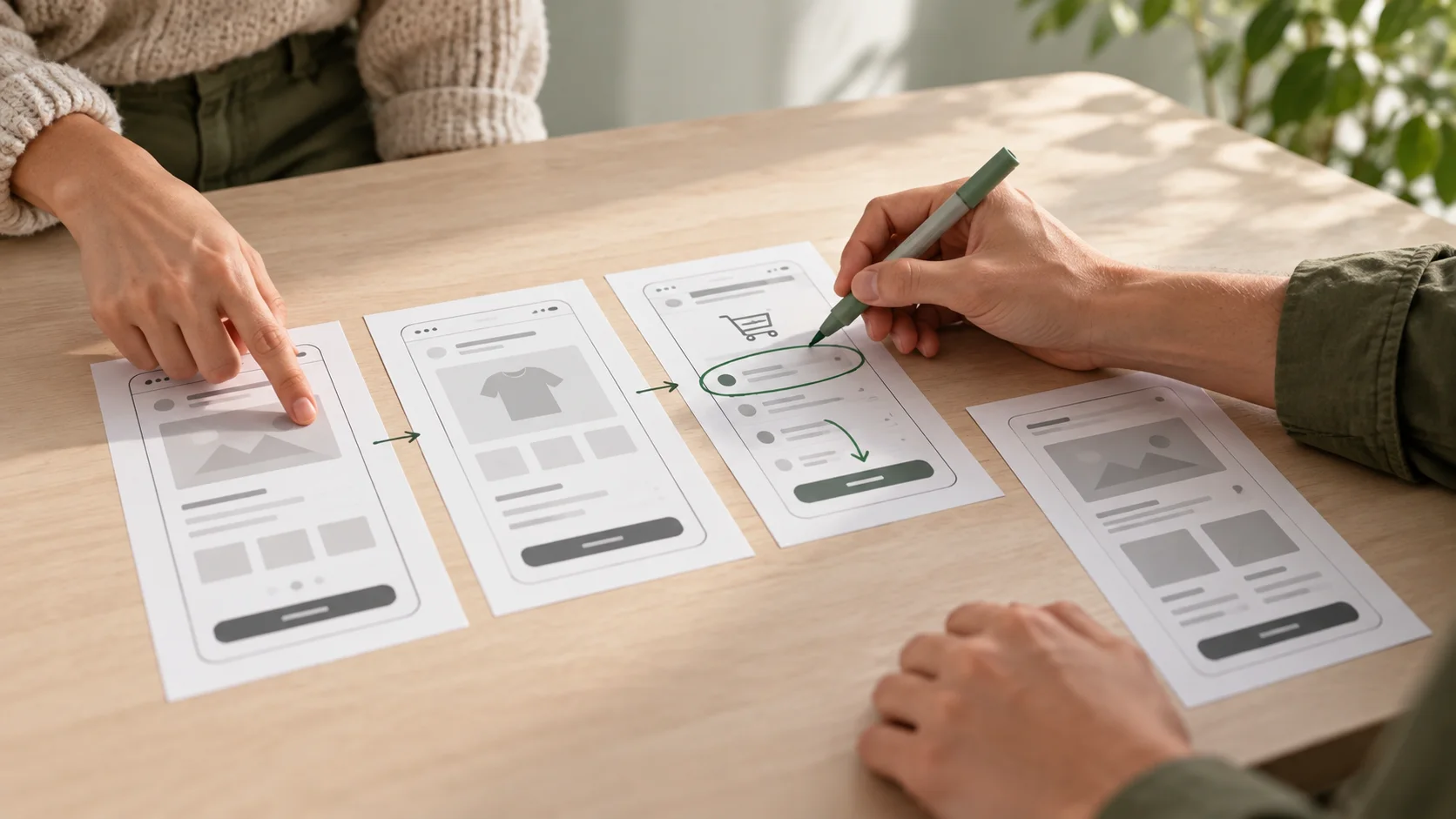
Use AI-generated screens or copy as starting material. Edit them so the delivery price, labels and constraints are internally consistent. Add the states a participant may encounter: available option, unavailable postcode, changed selection and order review. A smooth happy path alone can hide the very problem you need to test.
Build only the interactions needed for the task. In Figma or another prototyping tool, connect the cart to delivery choice, connect each meaningful choice to a review state and provide a way back. The previous guide to creating a UX prototype in Figma covers the basic mechanics.
Use believable content, but do not imply that fictional delivery times, prices or availability are real. If the prototype is for a live product, replace invented details with approved examples or clearly label the simulation for testers. AI can draft interface copy; a designer still needs to check clarity, tone and factual accuracy.
04 Review usability and accessibility before testing
Generated screens can look complete while omitting essential behaviour. Ask whether the primary action is visible, the steps are in a logical order, error messages explain recovery and the same term is used for the same concept. Check colour contrast, text size, focus order and labels when those details are represented in the prototype. A clickable mockup cannot establish that the eventual implementation is accessible, but it can reveal design choices that need correction.
For the checkout example, make sure the selected delivery option is unmistakable and its cost appears in the final total. Test what happens when a postcode is invalid or when the buyer changes the option. These details matter more than adding a polished transition between screens.
Also check the handling of research material. Do not paste identifiable interview notes, customer details or confidential product information into an AI tool without checking the applicable data policy. An anonymised summary of the user need is often enough to explore a flow.
05 Test the task and keep an evidence trail
Give a participant a goal: “Buy this item and choose a delivery option that works for you. Tell me what you expect to pay before moving to payment.” Do not tell them where the delivery control is. Observe whether they notice the cost, understand the options and can change their choice.
Record observations separately from explanations. “The participant returned to the cart to look for the delivery price” is an observation. “The price on the delivery screen is too small” is a hypothesis to investigate. Revise the relevant part of the prototype and try again. For a practical testing setup, see the UX design process.
Keep a short decision log: the problem, options considered, why one was selected, what testing showed and what changed. This gives a portfolio reviewer or team member a clearer view of your reasoning than a gallery of generated screens.
06 Common mistakes with AI-assisted prototypes
- Starting with a vague prompt: define the user, task, constraint and test question first.
- Treating generated screens as user evidence: use them as hypotheses and observe real behaviour.
- Keeping every suggested feature: remove anything that does not help answer the prototype's question.
- Testing only the happy path: include a realistic error or change-of-mind state when it affects the task.
- Trusting generated copy or data: verify labels, prices, policies and claims before a participant sees them.
- Polishing before evaluating: test a simple route while it is still cheap to change.
07 Use speed to make better decisions
Rapid prototyping is valuable because it lets you compare an idea with user behaviour sooner. AI can accelerate draft screens, alternate routes and copy. The designer's contribution is to choose a meaningful question, interpret evidence, set boundaries and decide what to change. Keep the prototype small enough that each round of feedback leads to a clear next step.
Want guided practice combining UX research, prototyping and AI-assisted workflows? Explore Zolve Academy's Professional UI/UX Design & AI-Powered Workflow Program, review the curriculum and use the course enquiry option to discuss your learning goals.
FAQ
Common questions about How AI Can Support Rapid Prototyping Without Replacing UX Thinking
A quick summary of the most common questions readers have about this topic.
Some AI design tools can turn a prompt into draft screens or an interactive concept. The result still needs a designer to check the task, content, flow, error states, accessibility and whether people can use it.
AI is useful for generating alternative screen structures, drafting realistic interface copy and listing possible states to test. Start with a specific user task and review each suggestion against your research before building it into a prototype.
No. A generated prototype shows a possible solution, not evidence that users understand or can complete a task. Observe people trying the flow and revise it using what they actually do and say.
State the user, their goal, the starting point, the main steps, important constraints, the device and the states you need. Ask for a focused flow and explain which assumptions remain unverified.
Check the tool's data handling rules and your organisation's policy first. Remove names, contact details and other sensitive information; use an anonymised summary of the relevant need or behaviour when possible.